







Quick setup guide
You can set up WordPress analytics without cookies and without Google Analytics (Google Analytics alternatives for WordPress) with Trackboxx in around five minutes:
- Create an account: Register with Trackboxx, add your website and copy the tracking ID.
- Install the plugin: In the WordPress dashboard, search for “Trackboxx” under Plugins, then install and activate it.
- Enter the tracking ID: Paste the ID into the plugin settings and save.
- Test: Open your site in a private browser window and check that the visit appears in the dashboard.
After that, you can see how many visitors come, which pages they read and where they come from. You don't need a cookie banner for Trackboxx, because nothing is stored on your visitors' devices. What you should still put in your privacy policy is covered in the privacy section below.
Try Trackboxx free for 30 days now
No payment information required! No automatic renewal!
Trackboxx is ready in one minute.
Which metrics should visitor analytics show?
Good visitor analytics answer four questions: how many people visit, what do they read, where do they come from, and do they take the actions you want them to take?
- Visitors and page views: A visitor is the person; a page view is each page loaded. If someone reads three articles, that is one visitor and three page views. Together, these figures show whether people stay or leave after one page.
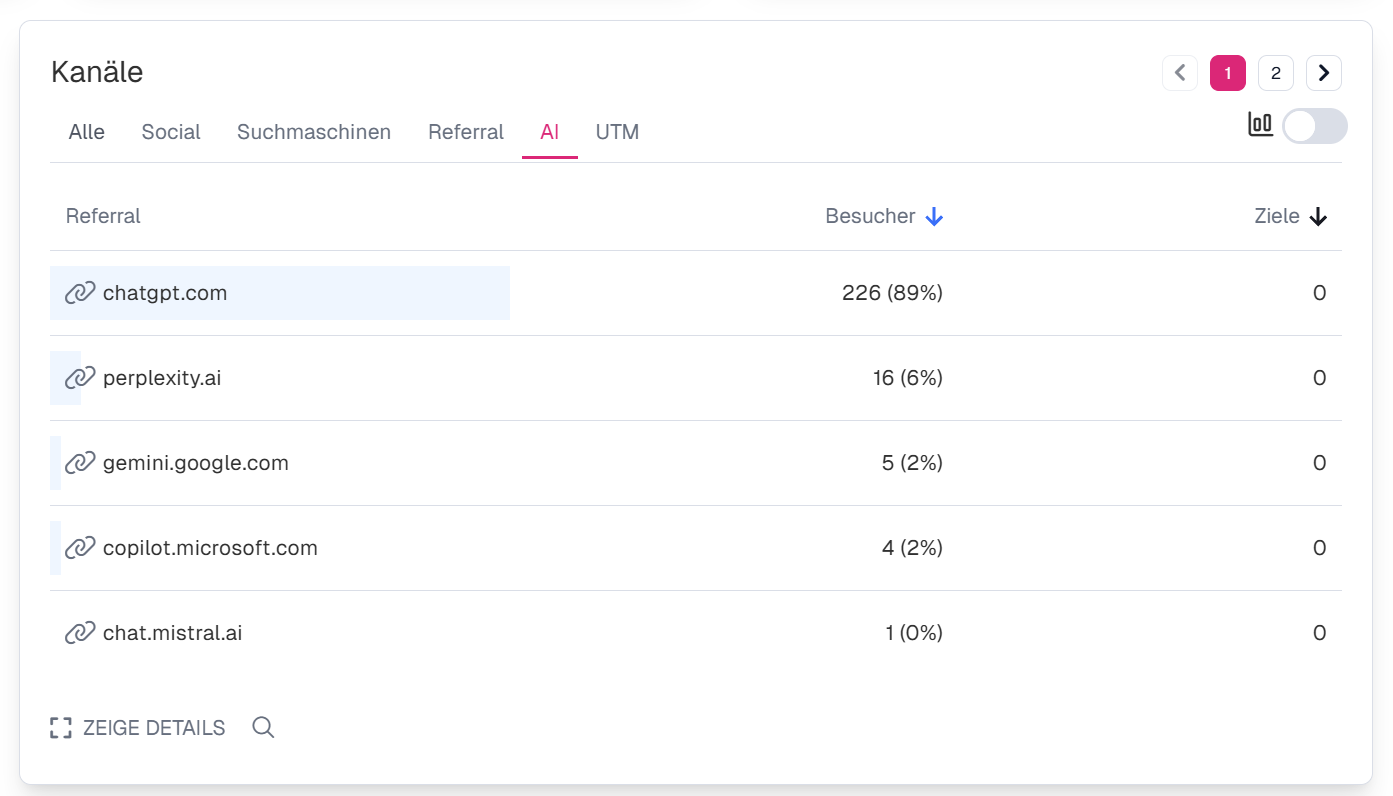
- Sources and channels: Do visitors arrive through Google, direct visits, other websites or social networks? Visits through links in answers from AI assistants such as ChatGPT are a newer source. Trackboxx lists them in a separate “AI” channel.
- Popular pages: These show which topics work and what you should write more about.
- Goals and conversions: Important for shops, enquiry forms and newsletters. In Trackboxx, you can create goals yourself or adopt suggestions from automatic goals (Auto Goals).
For a blog, the first three points are enough. You don't need heatmaps, session recordings and user profiles there, and they almost always require consent.
To judge whether analytics are enough for you, ask yourself: what decision will you make with the figures? Popular pages and sources are enough to decide which articles to update. To evaluate advertising, you need campaigns and goals.
Three ways to track visits in WordPress
There are three ways to add a visitor counter to WordPress. The main differences are where the data is stored and how much load each option puts on your site.
| Method | Where is the data stored? | Load on your site | Suitable for |
|---|---|---|---|
| Plugin with its own database (e.g. WP Statistics) | in your WordPress database | Counting and analysis run on your server, and the database grows as data accumulates | small sites that want everything in the dashboard |
| External analytics service (e.g. Trackboxx) | with the provider | low; only a small script is loaded | blogs, company sites, shops, several sites in one dashboard |
| Hosting provider’s statistics | in your hosting provider’s server logs | None | anyone who only wants a rough idea of whether people visit |
The hosting provider’s statistics require no setup, but also count bots and usually provide only rough figures. A plugin with its own database keeps everything on your server, but high traffic consumes noticeable processing power and storage.
With an external service the provider’s location matters. Trackboxx stores all data on its own hardware in a data centre in Frankfurt. The data therefore does not go to Google or the US, and your WordPress database stays lean. With over 3,000 customers, Trackboxx is one of the established European alternatives to Google Analytics.
This article shows the setup with Trackboxx. The process of using a plugin, tracking ID and functionality test is similar for most external services.
Step by step: set up Trackboxx in WordPress
You need administrator access to the WordPress dashboard. Everything else is created in the following steps.
Step 1: Create an account and copy your tracking ID
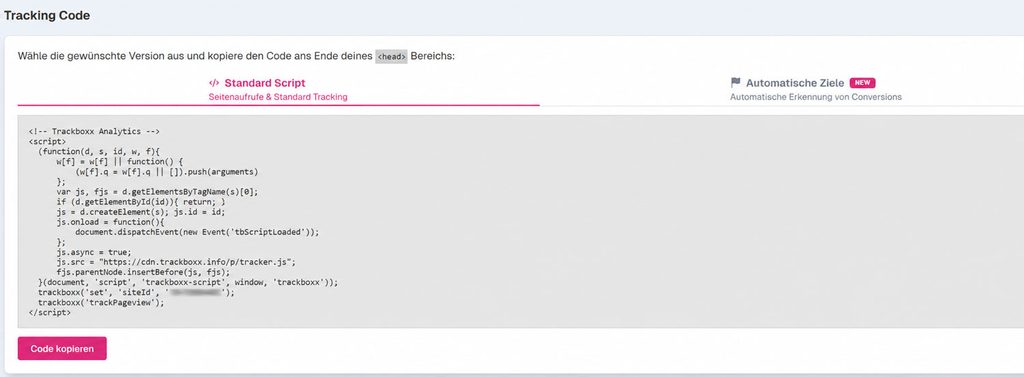
Register with Trackboxx and add your website with its domain. You will then find the tracking ID in the settings for your website. Copy it; you will need it in WordPress shortly. You can try the service free for the first 30 days.
Step 2: Install and activate the plugin
In the WordPress dashboard, open Plugins → Add New Plugin, search for “Trackboxx”, click Install Now and then Activate. Only activation switches the plugin on. What else it includes, such as the opt-out via shortcode and WooCommerce tracking, is described on the page about the Trackboxx WordPress plugin.
Step 3: Enter your tracking ID
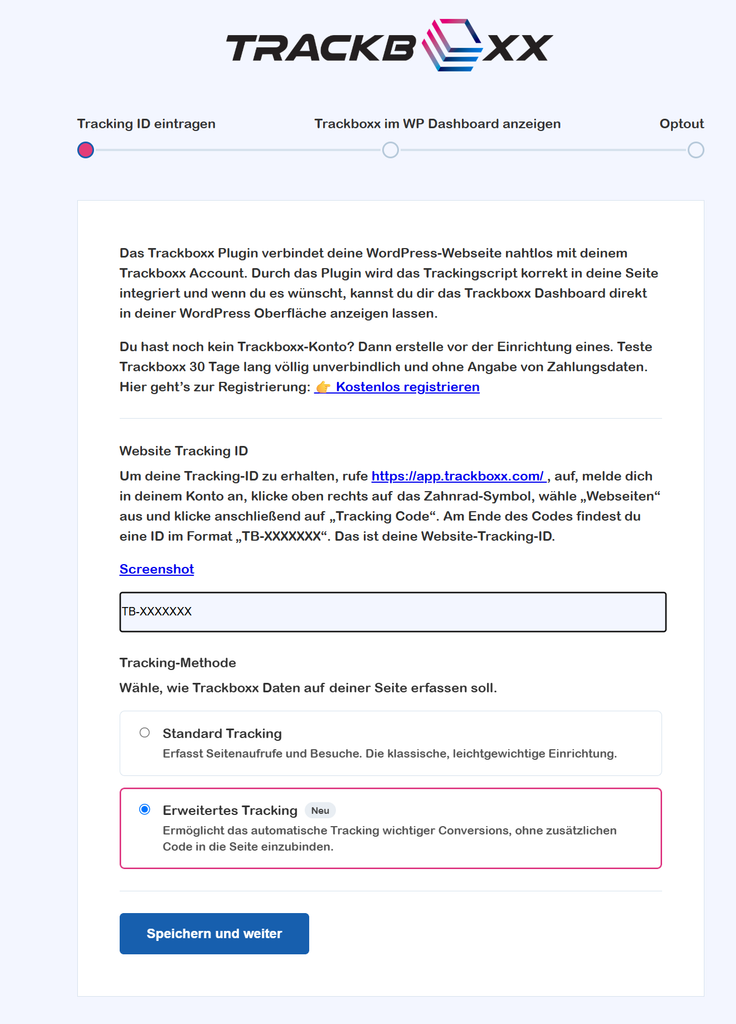
Paste the ID into the plugin settings and save. The ID tells Trackboxx which website the page views belong to.
Important: Copy the full ID without spaces at the beginning or end. An invisible space is one of the most common reasons why no data arrives.
Step 4: Test tracking in a private window
Open your website in a private browser window where you are not logged into WordPress. Visit one or two pages, then open the Trackboxx dashboard. Your visit should appear as a page view.
Run this test before excluding your own IP address (next section). Otherwise, your test visit will not appear and analytics may seem broken even though they work.
Optional: exclude your own visits
On small sites, your own clicks noticeably distort the figures. Exclude your own IP address in the Trackboxx dashboard under settings for the relevant website. If your IP changes regularly, as with a typical DSL connection, enter it again after each change.
Result: The dashboard shows visitors, page views, sources and popular pages, and your test page view is visible.
If no data appears
With the plugin, analytics almost always work immediately. If the dashboard stays empty, check these four points:
- Is the full tracking ID entered without spaces?
- Have you cleared the cache?
- Is an optimisation plugin delaying the tracking script (see next section)?
- Have you already excluded your own IP? Then your test visit will not be counted.
Configure caching and optimisation plugins correctly
Clear the cache once after setup. Otherwise, your caching plugin may still serve pages without the tracking code.
An important point that is often overlooked: many optimisation plugins load JavaScript only when visitors scroll, click or type. This speeds up the site, but has a side effect. Anyone who looks briefly and leaves without interacting is not counted. Your visitor figures are then too low without you noticing.
Typical settings with this effect:
- WP Rocket: “Delay JavaScript execution”
- LiteSpeed Cache: Delay loading JS (“Delayed”)
- Perfmatters: “Delay JavaScript”
The solution: add the Trackboxx script to this feature’s exclusion list. You can find the script address in the tracking code under your website settings in the Trackboxx dashboard. Then clear the cache and repeat the functionality test.
Without a plugin: add the tracking code manually
Instead of using the plugin, you can add the tracking code yourself. It must be placed in the header (<head>) on every page. Copy the code from the settings for your website in the Trackboxx dashboard.
The cleanest method is to use the WordPress hook wp_head in the functions.php of your child theme or in a snippet plugin such as WPCode:
add_action( ‚wp_head‘, function () {
?>
<!– Paste the Trackboxx code from your dashboard here –>
<?php
} );
Which method suits you:
- Child theme and some PHP experience: the hook above in
functions.php. - Without editing files: use a snippet or header script plugin and paste the code into its header field.
- Theme with a dedicated header field: Some themes and page builders, such as Elementor or Bricks, have a field for custom header code.
Important: Never put the code in your main theme’s files. The next theme update will overwrite them and analytics will stop unnoticed. Clear the cache after adding the code and run the test from step 4.
The most common mistake when adding code manually: The code was copied through Word or another word processor. These programs replace straight quotes with typographic ones or insert invisible characters, and the script no longer runs. Copy the code directly from the dashboard into WordPress or use a plain code editor.
WooCommerce: analyse shop data without cookies
Visitor numbers alone are not enough for a shop. You want to know where customers leave: on the product page, in the cart or at checkout. In addition to visitors and sources, the Trackboxx plugin records these events:
- Added to cart (AddToCart): Which products attract real buying interest?
- Cart viewed (ViewCart): How many customers reach the cart?
- Purchases and revenue (Purchase): Which products and sources actually generate revenue?
For example, you can see when a product is often added to the cart but rarely purchased. This may point to shipping costs, delivery time or price.
No extra setup is needed: once the plugin is active, it records shop events automatically. Still, test tracking with a trial purchase, for example using a 100 percent discount voucher or your payment provider’s test mode. Then check that each event appears once in the dashboard.
Privacy: what “without cookies” means
Trackboxx stores nothing on your visitors' devices, neither cookies nor other persistent identifiers. That is exactly what the law otherwise requires consent for, via a cookie banner.
How counting still works:
- The IP address is not stored. Trackboxx combines it with other characteristics to create a kind of digital fingerprint that cannot be reversed (a so-called hash).
- This hash is created with a key that changes every day. It is deleted after 24 hours.
- This lets Trackboxx recognise a visitor within one day, but not track anyone across multiple days.
- All data is stored on our own servers in Frankfurt.
You still need to do two things:
- Update your privacy policy: Even statistics without cookies process data, and you inform your visitors about it (privacy policy for analytics tools).
- Sign a data processing agreement (DPA): Trackboxx processes the data on your behalf. You sign the DPA directly when you create your account, and you can find it at any time in the Trackboxx help centre (DPA in the help centre).
This is an explanation of the technology, not legal advice. For questions about your specific case, a data protection adviser can help.
How to interpret your first figures
In the first few weeks, the figures show patterns rather than success. Notice which pages people read regularly and which sources bring visitors. Daily figures fluctuate considerably; a single spike is often just a shared link.
Visitor, page view, source: A visitor is a person, a page view is one page request, and a source is where that person came from. Ten page views can come from just one visitor.
Returning visitors: Because Trackboxx deletes the visitor hash after 24 hours, it can't recognise anyone across several days. Someone who visits on Monday and on Wednesday counts as two visitors. That's the price of privacy without a banner, and for most decisions it doesn't matter.
Why Trackboxx shows different figures from Google Analytics
- Different definitions: Each tool counts visitors and sessions slightly differently.
- Cookie banner: Google Analytics only measures visitors who agree in the banner. Trackboxx needs no banner and also counts those who would have declined. Your numbers are therefore often higher, without being less accurate.
- Ad blockers: Some ad blockers block analytics scripts, more often with tech-savvy audiences. Hosting statistics are not a useful cross-check here because they also count bots.
“AI” channel: It only shows visits where someone clicked a link in an AI answer. No analytics tool can show how often you are mentioned in AI answers without receiving a click.
Compare figures only within the same tool. A jump immediately after switching is a measurement difference, not growth. Ideally, run both tools in parallel for a few weeks before turning off the old one.
Frequently asked questions
Without cookies, do I still need a notice in my privacy policy?
Yes. Even without cookies, data is processed, and you inform your visitors about that. You also need the data processing agreement (DPA) with Trackboxx. You don't need a cookie banner for Trackboxx, because nothing is stored on the device.
Can I import my data from Google Analytics?
Yes, you can import your historical Google Analytics data into Trackboxx and keep your records in one place. The two tools measure differently, so their figures cannot be compared directly. A jump when you switch does not represent actual growth.
Does Trackboxx slow down my website?
There is no noticeable slowdown. Your site loads only a small script, and Trackboxx handles data storage and analysis on its own servers. Your WordPress database does not grow as a result.
Does Trackboxx work with Elementor, Bricks and other page builders?
Yes. The plugin adds the tracking code to the head of every page, regardless of how the page was built.
Do I need to maintain the plugin after setup?
Install updates as you would for any plugin. After major WordPress, theme or caching updates, briefly check in a private window that page views are still being recorded.
Set up Trackboxx now
In five minutes, you can have WordPress analytics without cookies or banners, with servers in Germany. Try Trackboxx free for 30 days.
Try Trackboxx free for 30 days now
No payment information required! No automatic renewal!
Trackboxx is ready in one minute.